Importing Data
From zFairs Contest Management
Importing Registrations
Watch how to do Bulk Registrations HERE.
These instructions are the same for these types registrations: Participant, Judge, Teacher, school accounts and special user accounts. Currently, there is not an option for importing Volunteers or Attendees. If you need help importing information for these user types, please reach out to support@zfairs.com.
- Go to Staff > Import Data
- If you are a Teacher doing student imports (Bulk registrations), Navigate to 'Create Account' in your menu, then down to "Register Participants (Bulk)".
- It will take you to this screen:
- Make sure the correct tab is open. It defaults to participants, but it is always good to confirm you are importing information for the correct user type before starting (Teachers only have the ability to do participant imports, so they do not need to worry that they have the right tab selected).
- Then select Choose File. Select the CSV file that you want to load.
- You can download a template of the csv columns by clicking on "Download Template".
- Username, First Name, Last Name are the only columns that MUST contain information, otherwise all other columns will just
- Then you are asked to Map the columns:
- Each of the columns in your file should show, along with the title you named the column. You then need to select the item from the drop down list that matches the item in the CSV file.
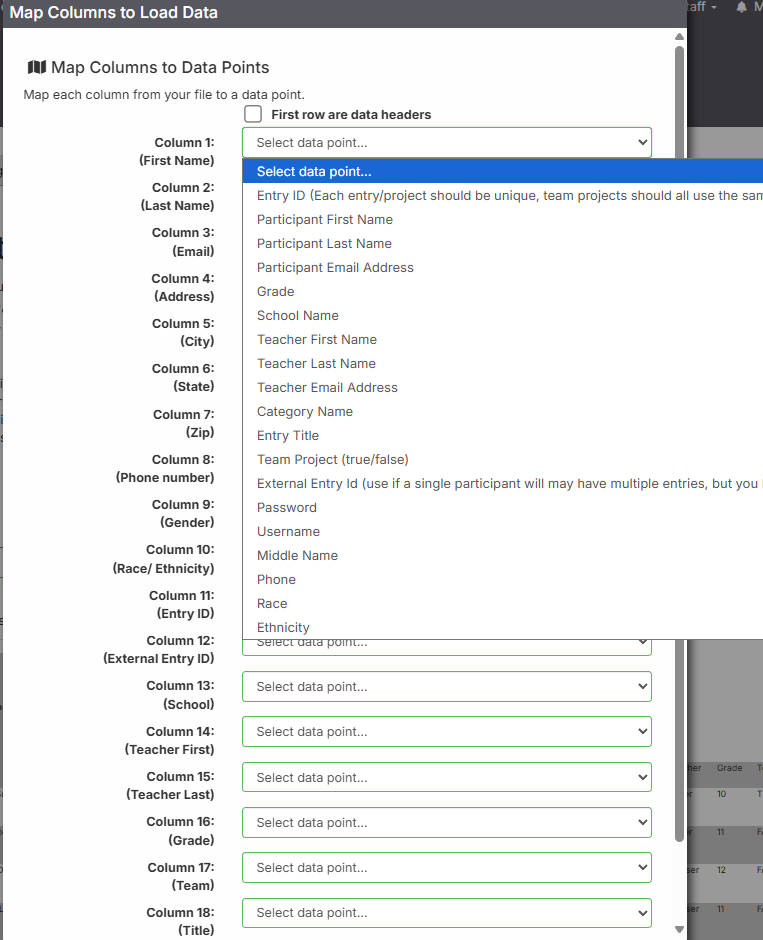
- Note: You will notice in the School, Judge and Other Users import that there is an option to add fields. Do this before uploading your file. Otherwise, all of the fields in your CSV file should match fields in your registration. If you notice that there is a field/column in your file that is NOT in your registration, close the file and DO NOT process. The item will need to be added to the registration in order for the data reports to collect the correct information. Go into your registration setup and add the field, then retry the import.
- If you have headers on your csv file, don't forget to select that the first row are headers, or else it will create a "header" account.
- When you are done mapping, select “process file”, double check to make sure your file looks correct, then click "Load".


Some things to take into consideration:
- As long as the First Name, Last Name and Email are the same, any other differences for accounts will be changed if uploading the CSV file multiple times, without creating a duplicate account. This can also cause information to be cleared from existing accounts.
- When creating TEAM projects, be sure to add an Entry ID column. Then assign any number to the projects with team members receiving the same number.
- If using multiple entries, add an External Entry ID. ALL PROJECTS should be assigned DIFFERENT numbers. First Name, Last Name and email of the participant should be provided for every project as well. NOTE: multiple entries will create what appear to be duplicate accounts on the people page. Just take note that multiple entries does not mean multiple participants, and the counts will show different numbers.
Assigning Judges to Projects With Import
Importing Scores
Related pages
Updated from Support instructions (2026).

